
When we discover some devices/switches or we create them manually, we can add connectivity between their ports on Device42 in two ways:
- Using cables
- Direct connection between ports
Using Cables
We need to create the cable under DataCenter > Cables
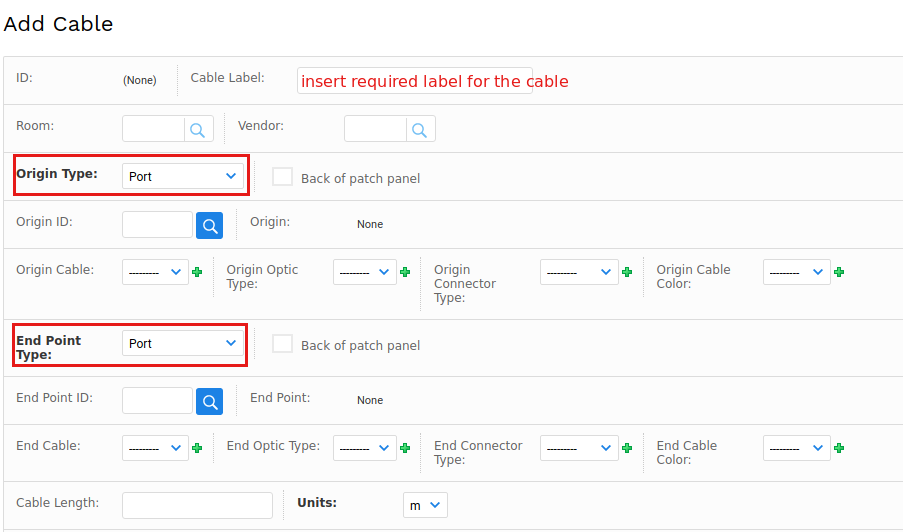
The most important two fields are "Origin Type" and "End Point Type" we need to select "Port" in order to be able to choose any device port required to establish the connection between them. We can insert the remaining fields as required, cable type, color etc.
Whenever you select the ports and click save the complete path will be shown under "Full Path:" section:

Direct connection between ports
We can connect the ports directly to each other from the port settings page itself under the "Connections" tab using the "Add New Connection" button:

from the newly opened window we select the target port
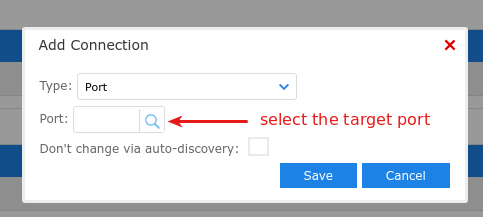
and click save.
Then on the device settings page we will see the full connectivity path under "Connectivity" tab:



