
High level overview on how to run Device42 on your local machine using VirtualBox
Download VirtualBox

https://www.virtualbox.org/wiki/Downloads
Install VirtualBox
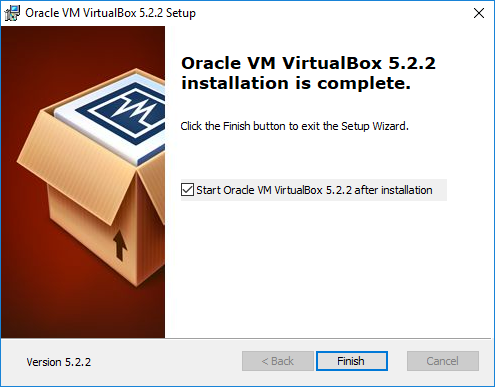
Go through all the appropriate next steps to install on your local Windows environment
Request Device42 Trial Download
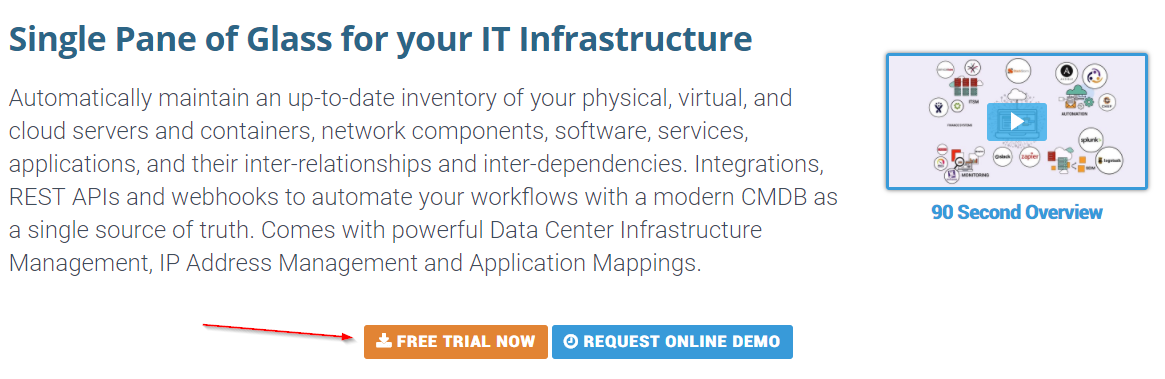
Http://www.device42.com
Click on "Free Trial Now"
Fill out form
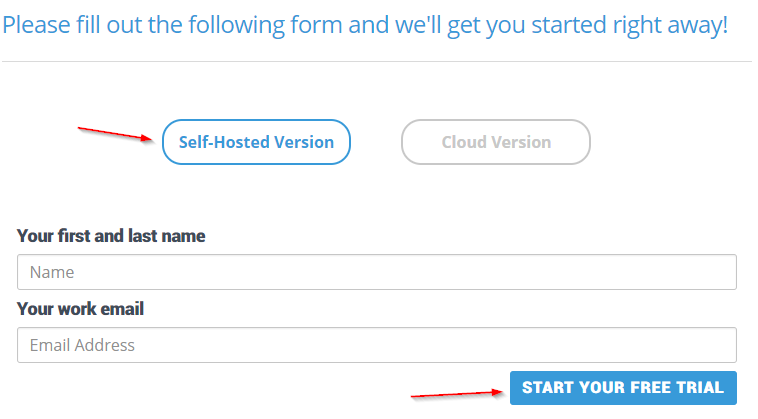
Fill out your name and your email then click on "Start Your Free Trial"
Go to your email

Click on "here" in your email to download the device42 virtual appliance
Select your virtual environment
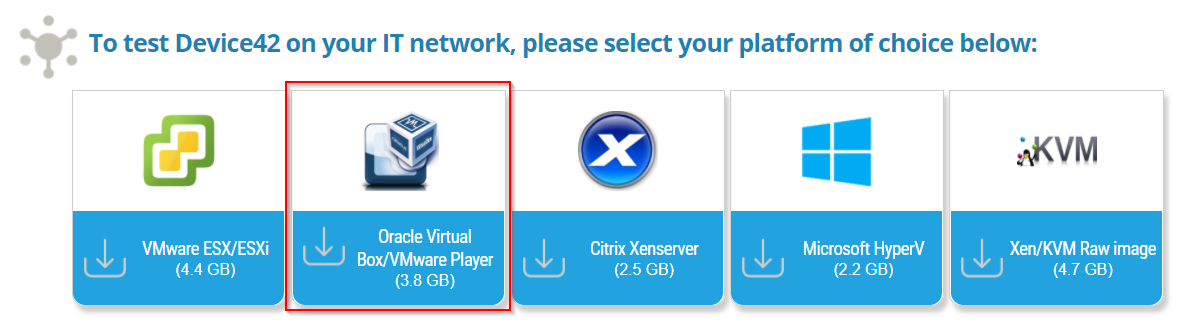
Oracle Virtual Box/VMware Player
Use 7zip File Manager
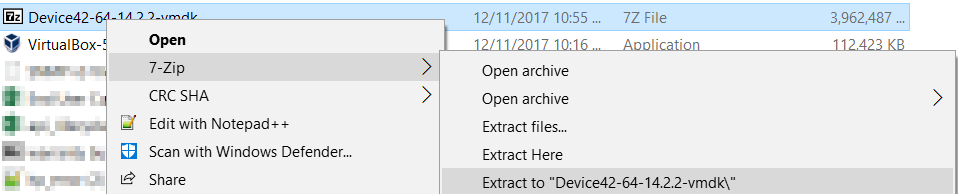
Extract the file with 7zip file manager. The 7zip extraction will extract a ".vmdk" file
http://www.7-zip.org/
Importing into VirtualBox as New VM
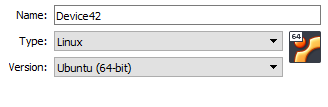
1 Choose any name you want to give this appliance.
2. Choose Linux as OS.
3. Choose Ubuntu (64-bit) as version.
4. Next
Memory
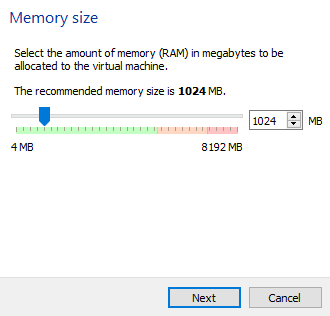
Give the vm at least 1gb of ram
Choose existing Harddisk and browse to unzipped VMDK
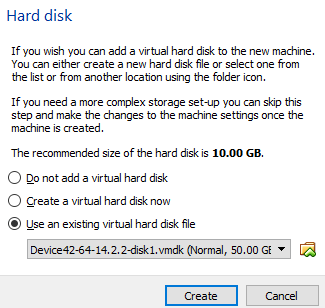
Use existing harddisk and browse to folder where you extracted device42-14.x.x-player.zip. And choose the vmdk file.
Click Create
Finish

Don’t power on after Finish
Enable PAE
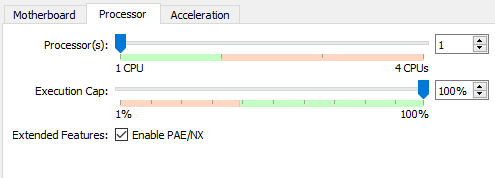
Go To setting of the new appliance you just added.
Go to System > Processor
Enable PAE
Click OK
Configure Network Card
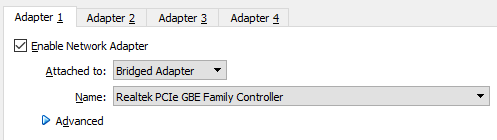
Enable Adapter 1.
Choose Bridged Adapter (or NAT if you want) for network access.
Choose the Physical NIC you would be using.
Click OK.
Setup and Go
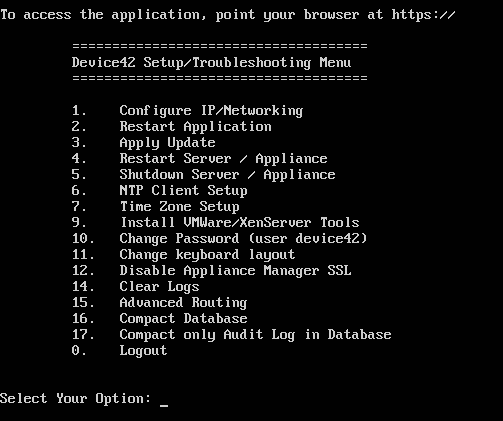
Power on Virtual appliance. (Ignore audio driver warning if you get any)
Login with default username and password : device42/adm!nd42 (Option 10 to change the password)
Network Setup
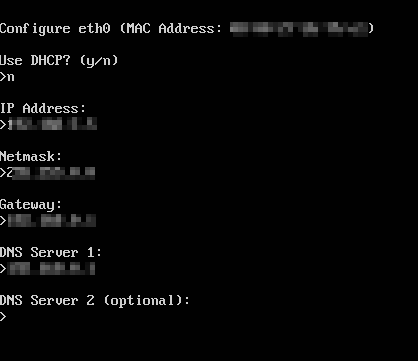
Option 1 to configure networking. Choose DHCP or give static IP.
Login!
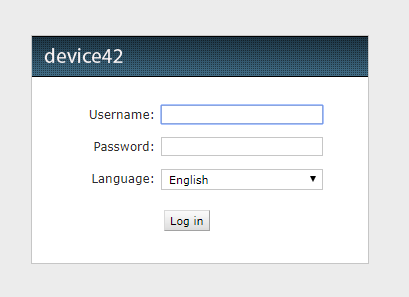
Default credentials:
Username: admin
Password: adm!nd42
Enjoy!


