
Secrets have their own permission settings which must be applied by the user who creates them, any other user even the local admin user cannot view the secret if it is not assigned to the group which includes these users.
Secrets are encrypted and stored in the database. When we create the secret there are a couple of options which can be used:
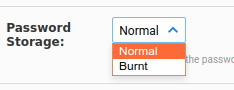
The password storage option will give us a possibility to store the secret as "normal secret" which can show, edit or retrieve.
Also we can store it as "Burnt", a “burnt secret” is simply a way to store a password and designate it as ‘un-retrievable’. If a password is set to ‘burnt’, it can never be retrieved after being stored, however, Device42 can utilize a “burnt secret” for discovery.
If a ‘burnt’ secret/password is forgotten, it MUST be reset & regenerated. Storing the NEW password as “burnt” repeats this cycle. Do not use burnt secrets if you will need to retrieve a stored password in the future. https://docs.device42.com/password-management/burnt-secret-password-storage/
Secrets Permissions
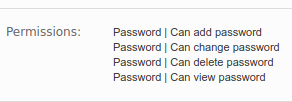
Global Permissions, by these permissions we can give the users possibility to view, add, delete or update secrets. The permission can be the combination of any of those options.
Per Password Permission,
View Users: Users who can view this password
View Groups: Groups who can view the password
Use Only Users: Users can see the username and ID to add this password to discovery jobs, but unable to view the contents of the password or edit it.
Use Only Groups: Groups can see the username and ID to add this password to discovery jobs, but unable to view the contents of the password or edit it.
View edit users: Users who can view or change the password (view edit users)
View edit groups: Groups who can view or change the password (view edit groups).
Set Default Password Management Group
Device42 allows you to set a default View/Edit group for passwords. Once set the group(s) will be given view/edit privileges by default on all new passwords.
To set one or more default groups with View/Edit privileges to passwords, go to Tools>Settings>Global Settings
then under "Password" section we have "Default password view edit groups:", after selecting your groups click save. After this any password created will have the selected groups set with view/edit privileges and these privileges cannot be removed. Any password that was created prior to setting this rule will not be automatically updated, but the view/edit group will be applied if the password is edited.
For more information about passwords operations you can refer to this link:
https://docs.device42.com/password-management/password-operations/

